Commands
Type a slash and the program tells you what it can do.
SketchUp has no command line. This does, and it is the fastest way to reach anything here: you do not have to remember where a thing is buried in a menu, only roughly what it is called. Everything below is on this one page so you can keep it open beside the program.
Using the list
- Type / in the command bar along the bottom - or press the / button at the left of it - and the whole list comes up with a word about what each one does.
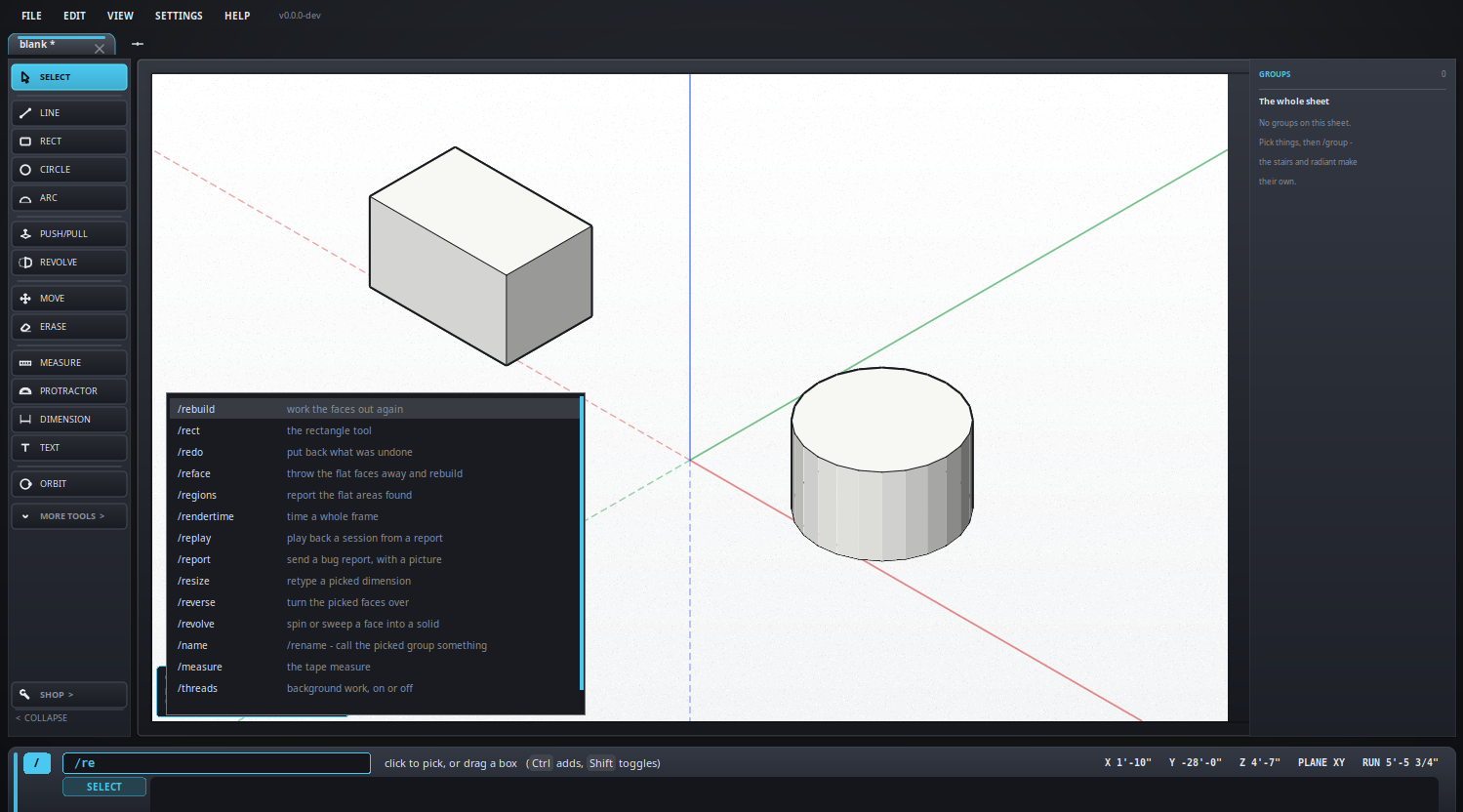
- Keep typing and it narrows.
/releaves you /rebuild, /rect, /redo, /reface and the rest: the ones that start with what you typed come first, then the ones that merely contain it. - ↑ and ↓ walk the list, the wheel scrolls it, Enter runs what is highlighted, Tab completes the name without running it, Esc puts the list away. Clicking a row does the same as Enter on it.
- The ones you have used lately sit at the top and the rest are alphabetical, so it works whether or not you already know the name. It remembers them between sessions.
- Beside each name is a word about what it does - and on the row under the
pointer, if that command takes something after it, what a real use of it
looks like instead. Highlight
/scaleand the line reads/scale 1/4", which is the bit you would otherwise have come here to find out.
/top looks from the top and that is the whole story - but
where there is more to say, the name is a link to it./e for the eraser, /mv for move,
/s for select. They are in the "Also" column below. The list
itself shows one row per action, because three rows of the same thing would
be a worse list - but typing a short name finds its row, and the row says
which name found it: /tape brings up /measure
marked /tape.All of them
Seventy-one commands, grouped by what you would be trying to do. The in-program list is alphabetical; this is not, because when you do not know the name, the name is not what you have to go on.
Picking up a tool
Every one of these just puts a tool in your hand. The "Also" column has the keyboard shortcut, which does the same thing and is quicker once you know it, and any shorter names the command answers to. See the keyboard and the mouse.
| Command | What it does | Also |
|---|---|---|
/select | the select tool | key Space, /s |
/line | the line tool | key L, /l |
/rect | the rectangle tool | key R, /rectangle, /r |
/circle | the circle tool | key C, /c |
/arc | the arc tool | key A, /a |
/push | push or pull a face | key P, /pull, /pushpull, /p |
/drill | push a shape right through | key B, /bore, /punch |
/offset | a parallel copy of a face's edge | key F, /f |
/revolve | spin or sweep a face into a solid | /followme, /follow, /lathe |
/move | the move tool | key M, /mv |
/rotate | the rotate tool | key Q, /q, /turn |
/erase | the eraser | key E, /e, /del |
/measure | the tape measure | key T, /m, /tape |
/dimension | the dimension tool | key D, /dim |
/protractor | lay a guide at an angle | /angle |
/text | a note on the drawing | key N, /note, /n |
/orbit | the free camera | key O, /spin |
The view
Where you are looking from. Every one of these flies the camera there rather than jumping, which is what keeps you from losing your place.
| Command | What it does | Also |
|---|---|---|
/top | look from above | /down |
/front | look from the front | |
/back | look from behind | |
/left | look from the left | |
/light | light that follows the camera, so the face turned towards you is the bright one: on, off. Off is the old fixed lamp for example /light off | /lamp |
/right | look from the right | |
/corner | look from a corner | |
/iso | the isometric view | key I toggles iso and plan |
/plan | look straight down | key I, /2d, /flat |
/fit | zoom until it all shows | key Shift+F, /zoom |
/origin | put the view back on 0,0,0 | /o |
/cube | the view cube: on, off, tl/tr/bl/br for example /cube tr | /viewcube |
/cut | the plan slice: two heights, or "all" for example /cut 0 9' | /slice |
/quick | quick frames while the camera moves |
Where a thing sits
Moving the whole drawing, or what you have picked,
to somewhere definite. /center and /tozero are
the two a 3D printer cares about.
| Command | What it does | Also |
|---|---|---|
/all | select everything on this sheet | /selectall |
/center | center it on the floor at 0,0 | /center |
/tozero | put its near bottom corner on 0,0,0 | /zero, /tuck |
/resize | retype a picked dimension for example /resize 4'6" | /size |
/reverse | turn the picked faces over | /rev, /flip |
/detach | move a line away on its own: on, off for example /detach on | /loose |
/unfold | lay a piece out flat | /layout |
Settings for the drawing
| Command | What it does | Also |
|---|---|---|
/info | the entity panel: on, off for example /info on | /entity, /properties |
/groups | the groups panel: on, off for example /groups off | /outliner |
/units | feet and inches, or millimeters | key U |
/scale | the print scale: 1/4", 1" and so on for example /scale 1/4" | |
/plane | the working plane: xy, xz or yz for example /plane xz | key K |
/grid | the ruled paper, on or off | key G |
/guides | clear the guide lines | /noguides |
Groups
All of them are on the groups panel too, and most are on the right button.
| Command | What it does | Also |
|---|---|---|
/group | make what is picked a group | /makegroup |
/edit | work inside the picked group | /opengroup |
/leave | step out of the group you are in | /closegroup |
/name | call the picked group something for example /name Left knob | /rename |
/lock, /unlock | lock the picked groups, or free them | |
/hide | put away the picked groups, or every group so named for example /hide labels | /putaway |
/show | bring back what is put away, or the groups so named | /unhide |
/explode | take the picked groups apart | /ungroup |
Faces and solids
A face is worked out from the edges that enclose it, not drawn; these are the words for when that needs a nudge, or for finding out why a shape will not print. See solids and 3D printing.
| Command | What it does | Also |
|---|---|---|
/holes | draw where a solid is not closed | /openedges, /notclosed |
/rebuild | work the faces out again | |
/reface | throw the flat faces away and rebuild | /rebuildfaces |
/regions | report the flat areas found | |
/forget | forget the areas seen, and work them out again |
Sheets, saving, undoing
| Command | What it does | Also |
|---|---|---|
/new | a new drawing - an empty file of its own | key Ctrl+N, Ctrl+T, /tab |
/sheet | add a sheet to this file | |
/example | the example drawing, as a new drawing | |
/close | close this file - every sheet of it, asking first if it has changes | key Ctrl+W |
/clear | empty this sheet | |
/save | save this file | key Ctrl+S |
/saveall | save every file with changes | |
/saveas | save it under a new name | key Ctrl+Shift+S |
/undo | undo the last thing | key Ctrl+Z, /u |
/redo | put back what was undone | key Ctrl+Y |
/print | this sheet - or "all", or "full" for example /print all | key Ctrl+P |
Building something
Wizards that write geometry for you rather than making you draw it.
| Command | What it does | Also |
|---|---|---|
/transition | build a duct fitting | /trans, /fitting, /elbow, /tee |
/radiant | the radiant heat layout wizard - select the floor first, every face a zone with a manifold of its own. The tube, its spacing and the goals; a search for the loops; a heat load if you want one; the submittal as a PDF. A hole cut into the floor is routed around. Right-click a built zone to open it in the wizard again, as it was built, or to print its submittal again | /pex, /hydronic |
/stairs | the stair calculator - a straight flight to code: typed and placed, between two picked lines, or picked on the drawing top, bottom and side. Its stringer sheet says what to buy and how to cut them | /stair |
/source | this sheet as text, in a window beside the drawing - in Heck, the readable form a drawing is saved in. Pick something on the sheet and its lines light up; click a line, or drag over several, and those things are picked on the sheet. Type into it and Apply makes the drawing match; Revert puts the text back. Everything folds; Only what is picked folds everything else shut. Ctrl+click a name goes to where it is defined, resting on it says where it is, Ctrl+F finds, Ctrl and the wheel sizes the text. As you type it offers words; /source complete off stops that, and Ctrl+Space asks for them. A statement taken from the list comes with its parts - box = <corner>; <size> - and Pick turns the sheet into a point picker: each click, snapped as the line tool snaps, fills the next part (a place, then a step or a radius from it); Esc ends it. A group made by a jig shows its jig = line with what it printed folded under it, and the play mark in the gutter runs that jig againfor example /source complete off | /src, /text-view |
/jig | run the picked group's jig again - the little program of yours that fills it - or, with nothing picked, every jig on the sheet. A jig is any program that prints Heck; see /source and its Sample | /jigs |
/spool | the pipe spool scratchpad | /pipe, /scratchpad |
The program itself
| Command | What it does | Also |
|---|---|---|
/help | about this program | key F1 |
/manual | open the manual | /docs |
/whatsnew | the release notes | /changes |
/update | look for a newer build for example /update never | /upgrade |
/report | send a bug report, with a picture | /bug |
/postcard | the once-only note to the authors, to send or read | /hello |
Under the hood
Diagnostics. Harmless, and mostly of interest when something has gone wrong and we have asked you to look.
| Command | What it does | Also |
|---|---|---|
/session | what has happened, most recent last for example /session session.txt | /acts |
/state | what a report says about the program right now | |
/sysinfo | what a report says about this machine | /machine |
/replay | play back a session from a report for example /replay session.txt | |
/threads | background work, on or off | |
/timings | time each step: on, do the slow thing, then again to see them for example /timings show | |
/rendertime | time a whole frame, in a box you can copy from |
A few worth knowing
/holesdraws, in red, every edge where a solid is not closed - the answer a slicer will not give you. See solids and 3D printing./centercenters what is selected on the floor - across X and Y, sitting on Z zero, which is where a 3D printer's slicer expects to find it./tozerostands it on the floor too, with its near bottom corner on the origin rather than its middle./cubeputs a view cube in the top right of a 3D view. Click a face to look at the model square on, an edge for a half turn between two, a corner for the three-quarter view most drawings are read from - and drag it to turn. It also shows which way you are facing, which the VIEW menu cannot. Off until you ask for it, and remembered after that./cube tl,tr,blorbrputs it in whichever corner suits, and/cube fitselection offstops a click framing what you have picked. With nothing picked it never re-frames: it just goes to the view you asked for./manualopens these pages.
What it looks like